
Changelog
Get the latest feature updates in Truv
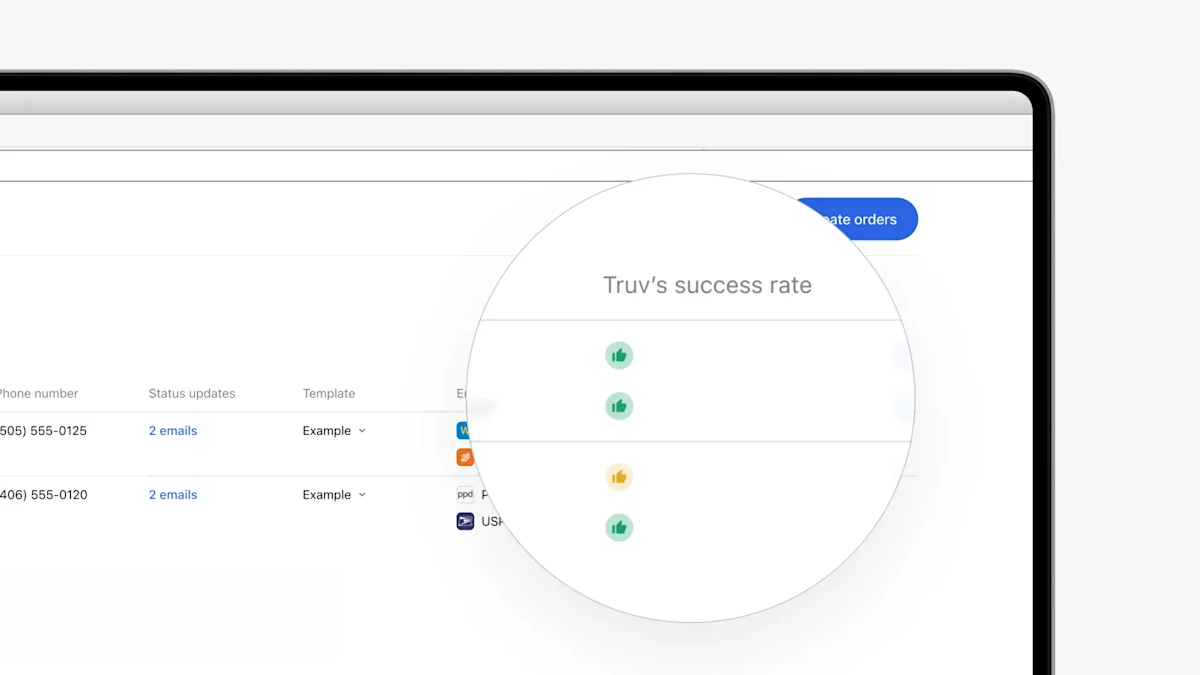
- Coverage updates in Encompass (Web and SmartClient): To create a consistent experience in Truv Dashboard and Truv Encompass app, we have updated the Coverage Indicators in the Encompass ‘New order’ tab to a green “thumbs up” icon, yellow “thumbs up” icon, and a red “warning sign”. Also, we have moved them to a dedicated “Truv’s success rate” column and updated the tooltip text to provide more details and recommended actions. The clearer indicators and actionable tooltips will help new order creators in Encompass quickly ramp up and optimize their usage of Truv.
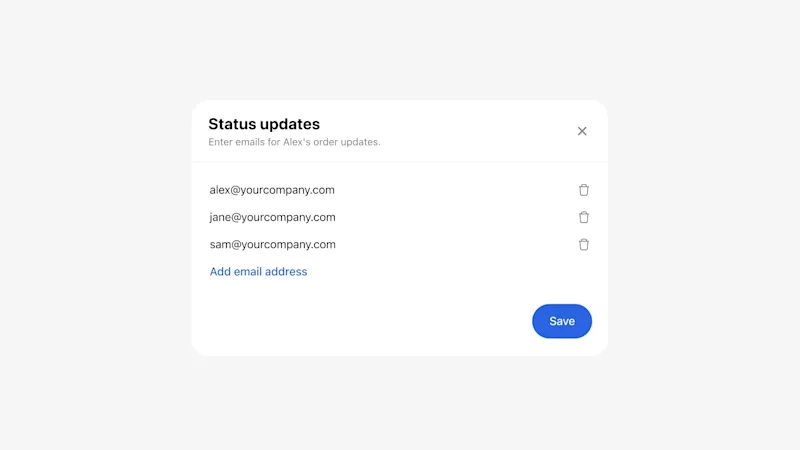
- Updates to Status Update column: In the Encompass ‘New order’ and ‘Order statuses’ tabs, we have a Status updates column that allows the order manager to add email addresses that will be CC’d on status updates for the initial or refresh Truv order. There were some cases where a user wouldn’t be able to add or delete an email address. To fix this issue, we have updated the pop-up to match the standardized pop-up in the Truv Dashboard, as well as listing the email addresses vertically and adding dedicated buttons for adding, removing and saving.
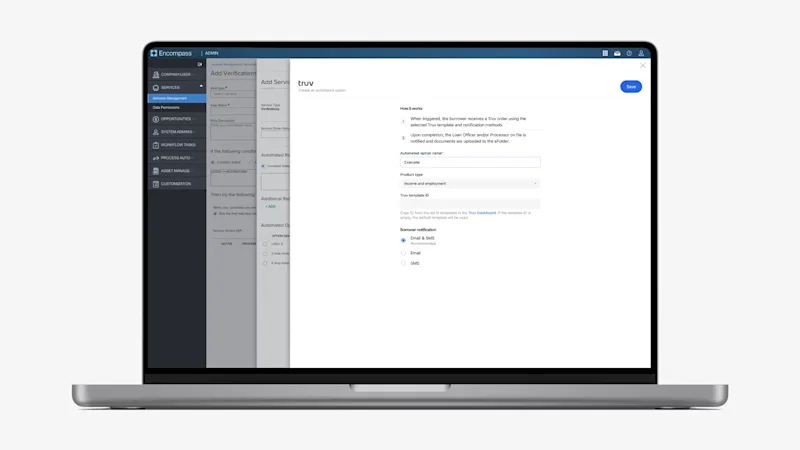
- Previously, we only allowed customization in the number of employers that could be requested while setting up an Automated Option to be used in Encompass Automated Service Ordering (ASO). To enable control over additional Truv order parameters while setting up ASO scenarios, we have expanded the Automated Option configuration page to allow selection of
- Product Type,
- Truv Template, and
- Borrower Notification Methods and
- removed setting the number of employers requested (default is now 5, Truv’s maximum). This unlocks a huge amount of customization within ASO since order branding, verbiage, returned documents, expiration periods and so much more can be edited in Truv templates, which can then be used in specific ASO scenarios.
- To access the new setup page, navigate to the Automated Options page when adding or editing a Service Order for Truv.
- If new to setting up ASO or you need help, check our setup guide at: https://docs.truv.com/docs/automated-service-ordering-setup-guide
- Set ASO conditions based on Truv Coverage: To increase the value and effectiveness of ASO with Truv, we added settings to allow lenders to specify which success rates they want to order ASO on. Previously, lenders could control the loan scenario and timing of ASO by using Encompass fields, but there was no control for the Truv’s success rate with the given employers. As a result, ASO would order Truv in cases where there was a low likelihood of success, instead of choosing an alternative method. Now lenders can incorporate this criteria into their ASO setup to avoid low success, high friction transactions and maximize their ROI with Truv. Reach out to Truv Implementation to request enabling this feature.
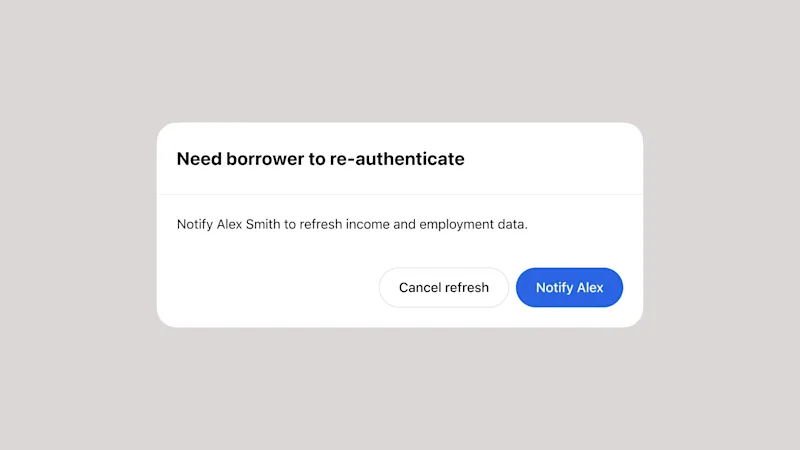
- Additional config for Re-verification: We have extended the functionality to approve or deny re-verifications that require borrower re-authentication to Encompass. Sometimes, if lenders know a 10 day pre-closing re-verification is going to require borrower re-authentication, they prefer to use an alternate method. Now, if lenders have the ‘approve re-verify’ setting enabled, when the order manager presses “Refresh data” in the ‘Order statuses’ tab, they will be prompted to Notify or Cancel before the request is sent, if borrower re-authentication is needed. Contact Truv Implementation to enable this feature.
- Borrower Report Naming Update in eFolder: Truv has a Borrower-level Report that includes a GSE Report ID and an Employer-level Report that does not. For lenders who have Truv’s Employer-level report enabled in Encompass, there were some cases where it would be named and tagged as a Borrower-level Report before being uploaded to the eFolder and ‘Order status’ tab. This has been corrected so the report will now be named and tagged correctly.
- Before the fix, Employer-level Report uploaded to Encompass as follows
- Document name:
{loan ID}_{borrower name}_{employer}_voie_report - Type:
report
- Document name:
- After the fix, Employer-level Report uploaded to Encompass as follows
- Document name:
{loan ID}_{borrower name}_{employer}_employer_report - Type:
employer_report
- Document name:
- Before the fix, Employer-level Report uploaded to Encompass as follows